

In an era where the demand for precise marking is growing, small-character inkjet printers have become a powerful tool in numerous industries, thanks to their ability to accurately print clear characters in narrow spaces. Whether it is for tiny components of electronic products or delicate packaging of pharmaceutical products, small-character inkjet printers play a crucial role. However, to ensure their stable and efficient operation, it is essential to be familiar with their operating procedures and understand common faults and corresponding troubleshooting methods.
1. Basic Composition and Working Principle of Small-Character Inkjet Printers
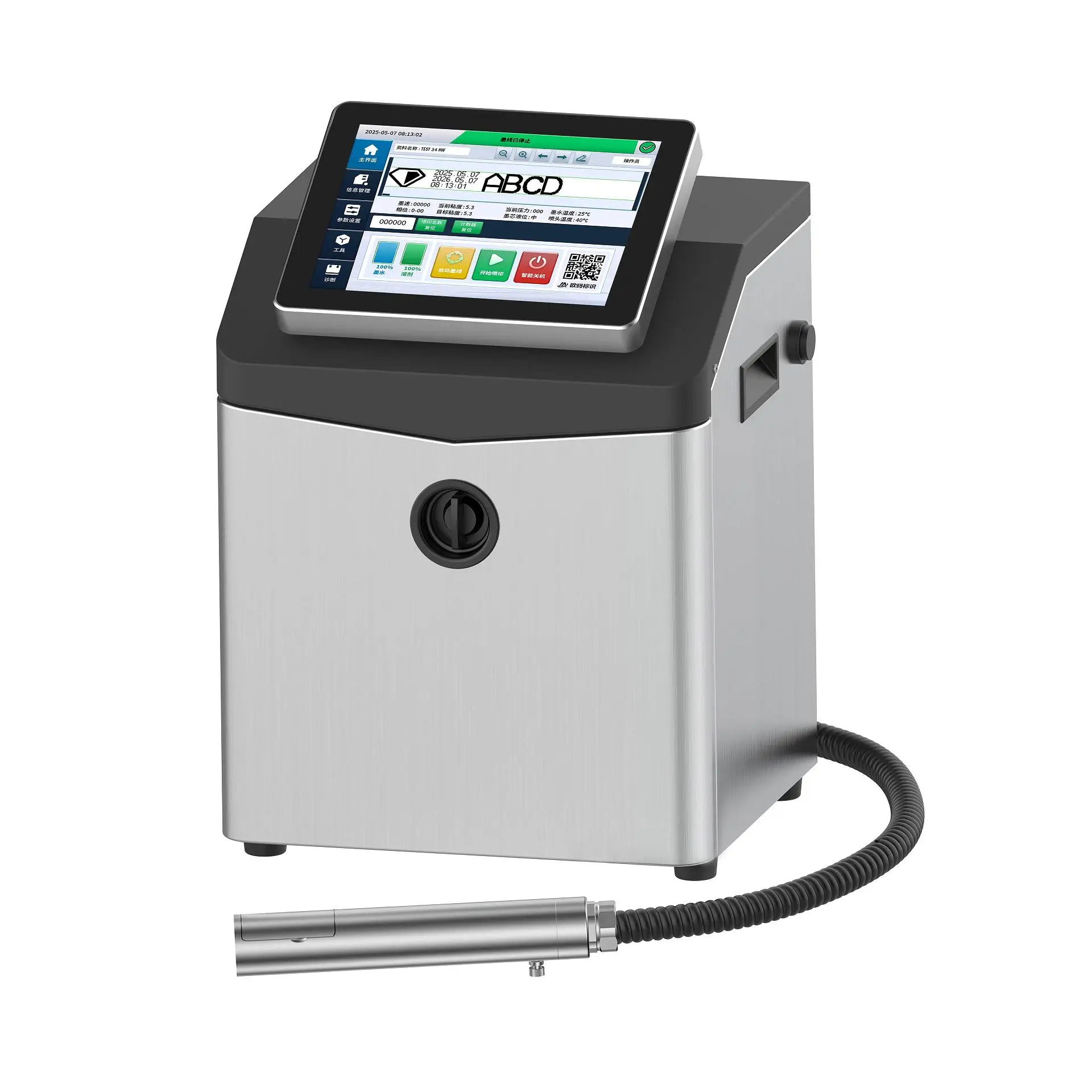
A small-character inkjet printer mainly consists of core components such as a , , , high-voltage generating device. Its working principle is similar to that of general inkjet printers but with unique precision:
Under the precise control of the ink supply pump, ink flows through ultra-fine pipelines to the nozzle at a stable pressure. Upon receiving high-frequency electrical signals from the control system, the piezoelectric crystal element inside the nozzle generates slight vibrations rapidly, accurately splitting the continuous ink flow into microscopic ink droplets at the micron level. Guided skillfully by a high-voltage electric field, these ink droplets are precisely jetted onto the product surface according to a preset program, forming clear and durable marks.
2. Operating Procedures for Small-Character Inkjet Printers
2.1 Preparation Before Startup
+5℃ to +45℃ and the relative humidity does not exceed 90% (without condensation). A suitable environment guarantees the stable performance of the ink and the normal operation of the equipment.
specialized ink for small-character inkjet printers. The ink level must be within the safe range required by the equipment (usually displayed on the machine's service module level indicator). If the ink level is insufficient, replenish it promptly to prevent nozzle damage due to inadequate ink supply after startup.
: Wipe the nozzle surface gently with a soft, lint-free cleanroom cloth dipped in a small amount of specialized cleaning fluid to remove any attached dust or impurities, avoiding nozzle blockage during printing.
2.2 Startup Steps
Connect the printer to the power supply and wait for the device's self-inspection program to start. During self-inspection, the indicator lights on the control panel will flash sequentially to show the detection status of each component. Do not perform any operations before the self-inspection is completed-this step is critical for the device to self-diagnose and ensure normal operation.
After successful self-inspection, enter the operation interface. Set the printing content (e.g., characters, numbers, patterns, production dates, batch numbers) according to printing requirements. You can import preset data by connecting to an external computer or input directly on the control panel using buttons or a touchscreen. When setting the font, select an appropriate small-character font type based on the product surface size and precision requirements (multiple standard fonts and font sizes are generally available). Meanwhile, fine-tune parameters such as font thickness and spacing.
Adjust the nozzle height and angle: Most small-character inkjet printers are equipped with precision fine-tuning knobs or screws on the nozzle bracket. By rotating these devices, precisely control the distance between the nozzle and the product surface to 2–10 mm (ensuring ink droplets land accurately without splattering). Keep the nozzle perpendicular to the printing surface, with the angle deviation controlled within a minimal range, to ensure neat and aesthetically pleasing printed characters.
2.3 Operation During Printing
Press the printing button of the inkjet printer to start formal printing. In the initial stage of printing, closely observe the printing effect-check the clarity, integrity of characters, and accuracy of the printing position. If there are issues such as blurriness, missing strokes, or offset, pause printing immediately and troubleshoot/adjust according to the fault-solving methods mentioned later.
Set the printing speed reasonably to match the production line speed. Excessively high printing speed may lead to unclear characters or smudging of undried ink droplets; excessively low speed will affect production efficiency. Fine-tune the printing speed on the operation interface based on the product movement speed and printing quality requirements-generally, the speed should be set to ensure characters are presented clearly and completely without affecting subsequent processes.
2.4 Shutdown Steps
After completing the production task, stop the printing operation first and let the nozzle stand in its original position for a moment. This allows the remaining ink in the nozzle to flow back to the ink tank, preventing ink from drying and blocking the nozzle.
Execute the device shutdown procedure: Usually, select the shutdown option on the operation interface and wait for the device to turn off the power automatically. Some inkjet printers will perform a secondary self-inspection before shutdown to confirm the device status and save relevant settings-wait patiently at this stage and .
After shutdown, cover the nozzle with a dedicated nozzle protector to prevent the intrusion of dust, moisture, and other impurities, preparing for the next startup.
3. Common Faults and Troubleshooting Methods for Small-Character Inkjet Printers
3.1 Unclear Printed Characters
Cause 1: Ink-related issues
Using low-quality ink (with high impurity content and poor fluidity) prevents ink from dispersing and adhering evenly on the product surface after being jetted from the nozzle. Alternatively, ink that has been stored for too long may deteriorate in performance, leading to uneven ink droplet size and unstable jetting trajectory.
Immediately replace with high-quality specialized ink for small-character printers recommended by the manufacturer, ensuring the ink's purity, viscosity, and other indicators meet requirements. Before adding new ink, thoroughly clean the ink circuit system to prevent adverse reactions caused by mixing old and new ink.
Cause 2: Nozzle blockage
Prolonged continuous use or failure to clean the nozzle promptly after shutdown may cause nozzle orifices to be blocked by ink impurities or dried ink stains. In particular, small-character inkjet printers have tiny nozzle orifices, making them more susceptible to impurity-related blockages.
Activate the printer's built-in powerful nozzle cleaning program and run it multiple times to flush the nozzle orifices with high-pressure cleaning fluid. For severe blockages, carefully disassemble the nozzle and soak it in a mild specialized cleaning fluid for several hours. If conditions permit, use an ultrasonic cleaner for auxiliary cleaning. Finally, dry the nozzle with clean compressed air before reinstalling it.
Cause 3: Unstable voltage
Fluctuations in the power supply voltage in the printer's operating environment affect the driving effect of the nozzle's piezoelectric crystal, leading to unstable ink droplet jetting force and direction, and thus blurry characters.
Equip the inkjet printer with a high-precision voltage stabilizer to monitor and adjust the input voltage to the stable range required by the device in real time. At the same time, regularly check whether the power cables are connected firmly and free from damage or aging, to avoid voltage fluctuations caused by line issues.
3.2 Deviated Printing Position
Cause 1: Loose nozzle installation
During production, equipment vibration, collision, or improper daily maintenance of the nozzle may cause the nozzle's fixing screws to loosen, resulting in nozzle position deviation and inaccurate printing position.
Shut down the inkjet printer, check the nozzle's fixing screws, and tighten them with appropriate tools to ensure the nozzle is firmly installed on the bracket. After restarting the machine, recalibrate the nozzle height and angle-adjust the distance and perpendicularity between the nozzle and the product surface according to the startup steps, then perform a test print to check if the printing position returns to normal.
Cause 2: Unstable product conveyance
If the conveyor belt of the production line matched with the inkjet printer has uneven speed, debris on the belt surface, or products are placed irregularly on the belt, the relative position between the product and the nozzle will change, causing printing position deviation.
Inspect the transmission device of the production line's conveyor belt, clean debris from the belt surface, and ensure products move stably and neatly on the conveyor belt. If necessary, calibrate the conveyor belt's speed control system to maintain a stable conveying speed that matches the printer's printing speed accurately.
3.3 No Ink Jetting from the Printer
Cause 1: Low ink level in the service module
Operators fail to monitor the ink consumption in the service module in a timely manner. When the ink level is below the suction limit of the ink supply pump, the pump cannot draw ink, and subsequent pipelines and nozzles will have no ink supply, resulting in no ink jetting.
Check the service module ink level displayed on the machine (a normal level is indicated as "OK"). If the level is low, promptly replenish specialized ink of a compatible model for the inkjet printer, ensuring the level is within the normal working range (the service module level is displayed in the "Valve Test" section of the machine's maintenance interface). After replenishing ink, start the printer's ink supply pump and observe whether ink can be supplied to the nozzle normally. If ink still fails to jet, further investigate other causes.
Cause 2: Blocked or damaged ink supply pipelines
After long-term use, impurities in the ink may precipitate and accumulate on the inner wall of the pipelines, reducing the pipe diameter and hindering ink flow. Alternatively, pipeline material aging, deformation due to external pressure, or chemical corrosion may cause pipeline cracks or breaks, leading to ink leakage and insufficient ink supply to the nozzle (resulting in no ink line).
If pipeline blockage is suspected, start the printer's built-in pipeline cleaning program and flush the pipelines cyclically with specialized cleaning fluid according to the equipment operation manual to remove precipitated impurities. If pipeline damage is found, shut down the equipment promptly, replace the pipeline with a high-quality one of the same specification, and ensure tight connections without leakage. Restart the equipment to check the ink supply status.
Cause 3: Malfunction of the ink supply pump
The impeller of the ink supply pump may wear out after long-term high-speed rotation, reducing its ink delivery capacity. The motor may burn out due to overheating, overloading, or quality issues, losing power. Aging or damaged sealing components may cause pressure leakage inside the pump, failing to provide stable and sufficient pressure for the ink, making it difficult to form an ink line.
Non-professional maintenance personnel . If a pump malfunction is suspected, contact the manufacturer's after-sales service or a professional maintenance team, describe the fault phenomenon, and allow them to repair the impeller, replace the motor or sealing parts according to the specific situation. If the damage is severe, replace the entire ink supply pump.
As a key equipment in the field of precise marking, small-character inkjet printers can only maintain optimal performance at all times if operating procedures are strictly followed, various faults are handled promptly and accurately, and daily careful maintenance and reasonable adjustments are conducted. This ensures they provide clear, precise, and durable marking services for various high-end and precision products, helping enterprises stand out in fierce market competition and ensuring smooth product quality traceability and brand image building.


